29th October 2026 · 17 min
Mobile Friendly Web Design: A Practical UK Guide for 2026

A page can fit a phone screen perfectly and still fail the person holding it. They tap Book and nothing happens, they enlarge the text and the button disappears, or they lose a half-completed form when the train enters a tunnel. That's the test for mobile friendly web design in 2026. It isn't whether your layout shrinks. It's whether a real task finishes, one-handed, on an ordinary phone, on an uneven connection.
Table of Contents
- Mobile Friendly Web Design Targets at a Glance
- How to Build a Responsive Layout Step by Step
- Touch and Form Tips for One-Handed Tasks
- Why Slow Taps Cost More Than Slow Loads
- Accessibility Failures Mobile Testing Misses
- Real Device and Network Test Matrix
- Confirm One Mobile Journey Before You Ship
Mobile Friendly Web Design Targets at a Glance
Ofcom's Online Nation 2024 report found that 47.4 million UK adults accessed the internet in May 2024 using smartphones, tablets and computers. They spent an average of 4 hours and 20 minutes online each day. Smartphones accounted for 75% of that daily online time, or approximately 3 hours and 15 minutes. Computers and tablets each accounted for about 32 minutes. Smartphone use also varied by age: people aged 25 to 34 spent 83% of their online time on smartphones, compared with 56% for people aged 65 and over. Ofcom's Online Nation 2024 report
Those figures make the phone experience a product priority. A desktop page compressed into a narrow column may avoid obvious overflow, yet still make reading and completing a task difficult. Check the interactions, loading behaviour and assistive technology experience alongside the layout.
The checks to run first
Run these eight checks on your highest-traffic page before debating a redesign. Use a phone, Chrome or Firefox developer tools, and PageSpeed Insights.
| Check | Target | How to test |
|---|---|---|
| Viewport meta tag | width=device-width, initial-scale=1 | View the page source and confirm the tag is in the head |
| Body text size | 16px minimum with comfortable line height | Read the page on a phone at default settings without zooming |
| Reflow | No horizontal scrolling at 320px CSS width | Set the viewport to 320px in developer tools and scroll the full page |
| Tap target size | 48 by 48 CSS pixels minimum for primary controls | Measure buttons and links in browser developer tools |
| Tap target spacing | 8px or more between adjacent targets | Tap rapidly between neighbouring links on a real phone |
| Largest Contentful Paint | 2.5 seconds or less at the 75th percentile | Run PageSpeed Insights on mobile and read field data |
| Interaction to Next Paint | 200 milliseconds or less | Tap buttons and open menus on a throttled mobile profile |
| Cumulative Layout Shift | 0.1 or less | Watch for content jumping while the page loads |
Reflow often breaks on an embedded widget, table or fixed-width banner that pushes the page sideways. Layout shift can disrupt reading and lead to mistaps when images or ad slots load without reserved space. Those failures affect the same phone journey: a person may struggle to read, interact or finish a form.
Practical rule: If a visitor has to pinch, zoom or scroll sideways to finish the main task, the page is unfinished.
Passing these checks gives you a useful baseline, not proof that the experience works. They cover fit, loading and interaction responsiveness. They do not confirm that someone can pay, apply, recover an account or upload evidence successfully, or that a screen reader can use the same journey. Test those tasks on a phone as well.
How to Build a Responsive Layout Step by Step
Start narrow and earn every wider layout. Ofcom's Online Nation 2024 report reports that UK adults spent 75% of their daily online time, 3 hours 15 minutes, in smartphone environments in May 2024, while 47.4 million UK adults accessed the internet across smartphones, tablets and computers. That makes the narrow viewport your primary design surface, not your fallback.
Define the highest-value mobile journeys first, then build in this order. Skipping ahead to desktop polish is how teams end up retrofitting.
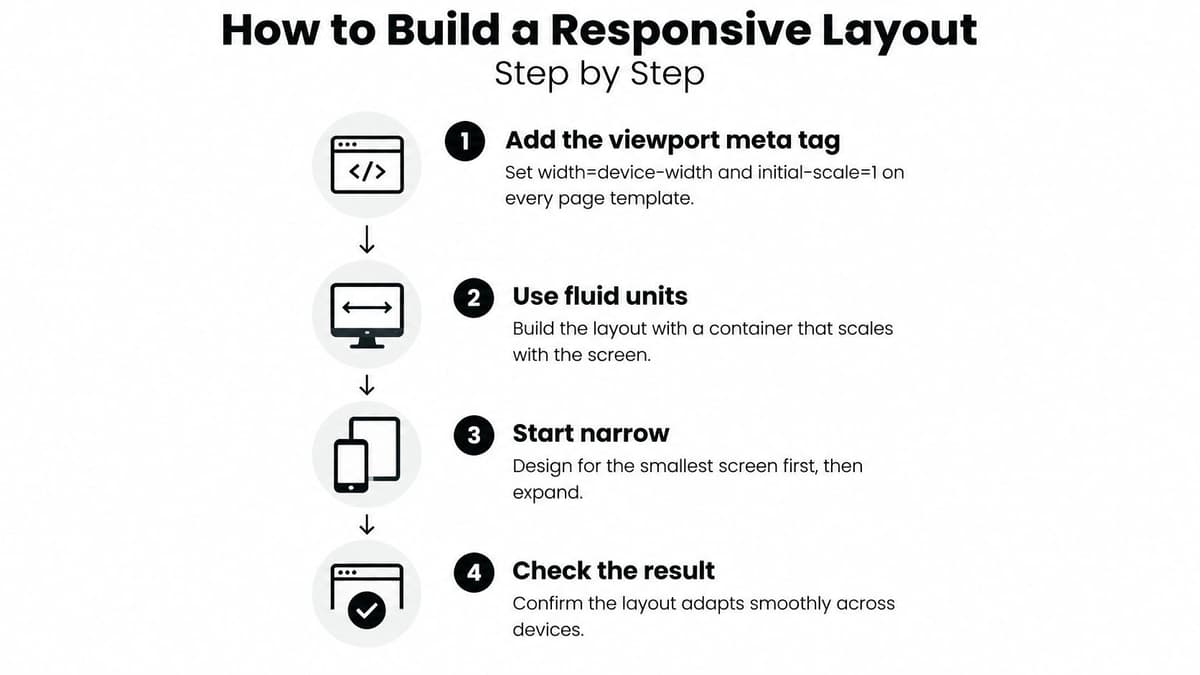
The four stages below summarise the sequence before you work through it in detail.
Steps 1 to 4
Add the viewport meta tag. Put
width=device-width, initial-scale=1in the head of every page template, including error pages and checkout. Without it, mobile browsers render at a desktop width and scale everything down, and no CSS downstream rescues that.Set the layout in fluid units. Use a container with a maximum width, percentage or
frbased columns, andmin()orclamp()where you need limits. Don't put fixed pixel widths on main content. Fixed widths are the single most common cause of the horizontal scrollbar you'll be hunting later.Write the narrow layout first, then expand. Style for a single column with no media query, then layer wider rules at breakpoints your content demands, often around 600px, 900px and 1200px. Pick breakpoints where lines get uncomfortably long or cards start to look stretched, not where a particular handset happens to sit. Devices change yearly. Your content's behaviour doesn't.
Serve images sized to the screen. Use
srcsetandsizesso a phone downloads a 480px file instead of your 2400px original. Add explicitwidthandheightattributes so the browser reserves space before the image arrives. This one step does more for perceived speed on mobile data than most minification work.
Steps 5 to 7
Collapse navigation deliberately. Below your first breakpoint, replace the link row with a menu button of at least 48 by 48 CSS pixels, labelled in text, not icon-only. Make the open panel scrollable on short screens in horizontal orientation, because a fixed panel taller than the viewport traps the bottom links out of reach.
Replace hover with tap. Convert hover-only dropdowns, tooltips and mega menus into tap-to-open controls with a visible expanded state. Anything that only appears on hover is absent for a touch user, and they'll never report it. They'll just leave.
Confirm there's no horizontal scroll at 320px. Load every template at 320px wide and scroll top to bottom. Fix offenders at the component level rather than hiding them with
overflow-x: hiddenon the body, which masks the symptom and breaks sticky positioning.
Watch this walkthrough if you want to see the build order applied to a live page before you touch your own templates.
The common slip is a desktop layout shrunk to fit, with wide tables and three-column cards left untouched. Stack the cards into one column. Let tables scroll inside their own container with a visible edge or shadow so users can tell there's more to the right, or reshape them into stacked label and value pairs. Never let a table drag the whole page sideways.
I would also treat the interface work behind these steps as product work, not decoration. Decisions about hierarchy, states and feedback belong with your web application UI design, agreed before breakpoints get argued over.
Finish with one check. A reader completes the main action in portrait and without zooming, on a throttled connection, using touch alone. If they can't, the layout isn't done, whatever the desktop preview looks like.
Touch and Form Tips for One-Handed Tasks
Forms break on phones far more often than homepages do, and they break at the worst moment, after someone has already decided to buy, apply or register. Layout advice about grids and breakpoints won't save a checkout that asks for fourteen fields, hides the submit button behind the keyboard and wipes everything after one typo.
The scale of the exposure is not theoretical. The Inside GOV.UK review of how people used GOV.UK in 2025 recorded 1 billion visits and 2.3 billion page views in 2025, with mobile accounting for 61% of visits by December. Those visits include tax, benefits and licensing tasks where failure has real consequences, so GOV.UK can't treat mobile as a reading mode. Neither can you.
These four principles, in the order I'd apply them, cover most of what one-handed completion needs.
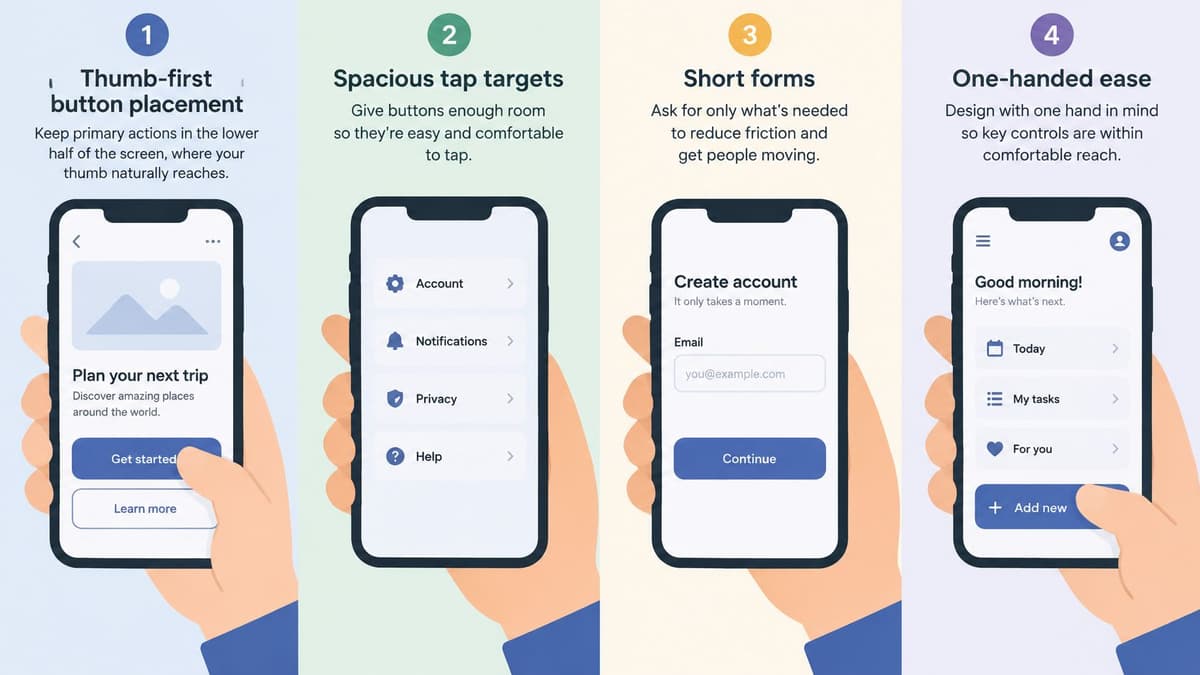
Design for thumbs first. Keep the primary action in the lower half of the screen, reachable without regripping the phone. Put destructive actions such as Delete or Cancel order well away from the primary button, never side by side with it. A mis-tap on a bus shouldn't cost someone their basket.
Shorten the form, then help the browser fill it. Ask for fewer fields per step and use progressive disclosure, revealing follow-up questions only when an earlier answer makes them relevant. Set the correct input types, email, tel and numeric modes for codes and card numbers, so the right keyboard opens. Add accurate autocomplete attributes for name, address and payment details. Every field the browser fills correctly is a field nobody mistypes on glass.
Keyboard behaviour and recovery
Keep the next action visible when the keyboard opens. On a phone, the on-screen keyboard can cover half the viewport. Test every step with the keyboard up, and make sure the field in focus, its hint text and the continue button are all reachable without dismissing the keyboard. Show validation errors beside the field that caused them, in words that say how to fix the problem. An error summary at the top of a long page is invisible to someone looking at the bottom of it.
Let people stop and come back. Save progress automatically as each step completes, preserve entered values after an error or a dropped connection, and offer save-and-resume for anything longer than a couple of minutes. Where a task needs evidence, offer camera capture for document upload with a standard file-picker fallback, and confirm receipt with a thumbnail so the user knows the right file went up.
Shrinking a multi-column desktop form into one narrow column gives you a responsive layout. It does not give you a usable form.
Track step-by-step abandonment on phones compared with desktop, plus error frequency per field and completion time on real devices. The step with the worst mobile drop-off is your next piece of work. Fix that step before you redesign anything that looks merely untidy.
Why Slow Taps Cost More Than Slow Loads
A page that paints its headline in a second can still feel broken. The visitor taps Book, nothing visibly happens, they tap again, and now they've submitted twice or opened two panels. That delay is an interaction problem, and load time won't reveal it.
Recent web data in Increv's Core Web Vitals study shows that only about 40% of mobile origins meet all three Core Web Vitals thresholds, while Interaction to Next Paint is a major weakness because JavaScript can block interaction. When the main thread is busy parsing a bundle or running a third-party script, the browser can't respond to taps, typing or scrolling. The page looks ready. It isn't.
Where the delay usually comes from
| Bottleneck | Typical cause | Fix |
|---|---|---|
| Chat widget loads at page start | Third-party script blocks the main thread | Load the widget on first interaction or after the page is idle |
| Analytics tags fire before content | Synchronous third-party script in the head | Defer or load asynchronously and test the impact on tap response |
| Client-side filtering on long lists | Heavy JavaScript runs on every keystroke | Filter on the server or debounce input for large lists |
| Oversized hero images | Large files delay first render and input | Serve modern formats sized to the viewport with srcset |
| Web fonts delay text | Blocking font loads hold up rendering | Use font-display swap and subset fonts to the characters needed |
| Single large JavaScript bundle | Every route ships all code on first load | Split code by route and load only what the current screen needs |
Notice what these fixes have in common. They're product decisions, not micro-optimisations. You're deciding that the chat widget waits, that filtering happens on the server, that the dashboard's charting library doesn't ship to the sign-in page. Someone with authority over the feature list has to make those calls, which is why performance work stalls when it's handed to developers as a purely technical ticket.
Prioritise by journey, too. A slow tap on a blog page is an annoyance. A slow tap in authentication, checkout or a support dashboard costs money and trust, because the user can't tell whether their payment or password reset went through. Our own approach to website performance optimisation starts from that same ranking, critical journeys first.
Report real-user INP alongside LCP and CLS, plus interaction error rates and abandonment on sign-in and checkout. Set a performance budget per critical journey, test on a low-end Android device rather than your flagship, and cut or defer whatever breaks the budget. Chasing a perfect score on a page nobody transacts on is wasted effort.
Accessibility Failures Mobile Testing Misses
Teams often test colour contrast and pinch the screen a few times, then consider a site accessible. Government monitoring suggests they are overlooking larger categories. The UK government accessibility monitoring of public sector websites and mobile apps 2020 to 2021 found 2,691 issues across 421 simplified tests. Its detailed testing found Parsing issues were the largest category at 23.5%, followed by Name, Role, Value at 8.7%, Info and Relationships at 8.0%, and contrast at 7.7%.
Parsing and programmatic relationships sit underneath the visual layer. Invalid markup, unlabelled controls and headings that don't reflect structure all look fine on screen while assistive technology gets nonsense. That's why visual-only mobile testing keeps passing pages that screen reader users can't operate.
The failures to hunt for
- Fixed-height components: Cards, banners and buttons with set heights clip text once a user enlarges it, sometimes hiding the call to action entirely.
- Modal dialogs with broken focus: The dialog opens but focus stays behind it, or it closes and focus returns to the top of the page instead of the button that opened it.
- Icon-only buttons with no accessible name: A magnifying glass or hamburger icon announces as "button" and nothing more.
- Gesture-only controls: Swipe-to-delete and drag-to-reorder with no visible button alternative exclude keyboard and switch users completely.
Catching these at the planning stage is cheaper than retrofitting them, which is why accessible names, focus order and error states belong in your early wireframes and component specifications rather than in a ticket raised after launch.
Five checks in order
- Enlarge text to 200% in the browser and confirm nothing clips, overlaps or disappears.
- Set the viewport to 320px and confirm there's no horizontal scrolling and no two-dimensional scrolling inside components that don't need it.
- Walk sign-up and checkout using only the keyboard, watching for a visible focus indicator on every stop.
- Run VoiceOver on iPhone and TalkBack on Android through one key journey, listening for labelled controls and sensible heading order.
- Rotate the device mid-task and confirm the main action still works and entered data survives.
Run these checks while you build each shared component, against WCAG 2.1 and 2.2 Level AA criteria written into your acceptance tests. Late fixes to navigation, forms and design-system components are the costly ones, because every page using them needs retesting.
Real Device and Network Test Matrix
Your office Wi-Fi is misleading you. It hands every page a fast, stable connection on a plugged-in flagship phone, then you ship to customers on mid-range handsets moving through coverage gaps. Build a test matrix that reflects where your users are, and run it before every significant release.
The matrix
| Device | Network condition | What to check |
|---|---|---|
| Mid-range Android phone | Throttled slow 4G | Tap response, scroll smoothness and layout shifts during load |
| Current iPhone at 375px width | Wi-Fi and 4G | Layout, safe areas and the main action completing in portrait |
| Older device one version behind | Latency spike | Whether controls respond late and whether forms freeze |
| Tablet | Wi-Fi | Breakpoints and orientation changes in portrait and landscape |
| Phone during a drop to 3G | Intermittent connection | Error messages, save-and-resume and retry behaviour |
| Desktop with mobile emulator | Fast connection | Baseline only, never sign-off |
That's the minimum set. One mid-range Android because it's the device class most likely to expose heavy JavaScript. One current iPhone at 375px because Safari handles viewport units, safe areas and input zoom differently from Chrome. One older device a version behind because your analytics will show plenty of them still in use. One tablet in both orientations because breakpoints around tablet widths are where half-finished layouts hide.
Throttle properly. Chrome DevTools network throttling gets you slow 4G and added latency, and a real journey on a train, in a lift or in a basement car park gets you the intermittent drops that throttling can't simulate. Do both. The train test sounds informal. It finds the retry and offline bugs that lab testing misses.
What to record on each row
- Time to first tap response: Tap the primary button as soon as it appears and note whether it reacts or sits there.
- Scroll smoothness: Flick through your longest page and watch for stutter, blank areas and images popping in late.
- Layout shifts during load: Record the screen while the page loads cold, then watch it back for jumping text and moving buttons.
- Task completion: Finish the main action end to end, including any confirmation step, and note where you hesitated or had to zoom.
Keep the results in a shared log with device, operating system, browser and network condition attached to every failure. A bug report that says "the menu is broken on mobile" will waste a day. One that names the handset and the throttling profile gets fixed.
Sign-off rule: A desktop emulator is a baseline for catching obvious layout errors during development. It can never sign a release off. Only a physical phone can do that.
If you can't maintain a device shelf, buy two phones, one mid-range Android and one iPhone, and use a cloud device service for the rest. Two real handsets plus honest throttling will catch more than a dozen emulated viewports on an unthrottled connection.
Confirm One Mobile Journey Before You Ship
Choose the phone journey that matters most for revenue or sign-ups, such as an enquiry form, sign-in or checkout. Run it on a real phone this week, using the targets, form and accessibility checks in this guide. Record the three worst results, fix the most serious one, then retest before making other changes.
Prioritise fixes by what blocks completion:
- Layout failures first. Fix viewport, tap-target or reflow problems before judging other issues. A broken layout makes the rest of the journey difficult to assess.
- Slow interactions second. Defer chat widgets, analytics and other third-party scripts before tuning images. A tap that does not respond can stop the task.
- Form abandonment third. If people drop off at one step, improve that step before redesigning the whole page.
After each fix, repeat the same journey on the devices in your test matrix and log the outcome. This catches regressions before they reach customers. Keep the scope to one journey, and assign someone to act on the results within the week. A focused check with a clear owner is more useful than an audit left unread.
If the journey needs rebuilding, Digital Souls Studios LTD builds high-performance sites and web apps using Next.js and Webflow. Share which phone journey needs attention, and the studio can scope the work with you at Digital Souls Studios LTD.