21st October 2026 · 15 min
Web Application UI Design: A Practical Process Guide

You've got a brief, a deadline, and a blank Figma canvas. A founder wants a dashboard, an operations manager wants reports, and someone in sales has already promised a launch date. Web application UI design rarely fails because a designer can't draw screens. It fails because teams start drawing before they know which tasks matter, who struggles with them, and what good looks like when a real user gets stuck.
Table of Contents
- Starting a Web Application UI Design Project
- Understanding Your Users Before You Design
- Building a Component Library and Design System
- Designing Responsive Layouts That Work
- Prototyping in Figma From Wireframes to Clickable Flows
- Practical Tips for Accessible and Trustworthy UI
- Verifying Your Design Through Testing and Iteration
Starting a Web Application UI Design Project
You're staring at an empty frame named Screen 1. The temptation is to drop in a sidebar, pick a primary colour, and make something presentable for the next stakeholder call. That sequence feels productive, and it's usually the fastest route to a pretty interface that answers the wrong questions.
A booking admin tool I worked on started exactly like that. The first mockup had a polished calendar, tidy filters, and a dashboard full of charts nobody had requested. When staff finally tried it, they didn't care about the charts. They needed to reassign bookings quickly during phone calls, undo mistakes without calling a manager, and see at a glance which jobs were unconfirmed.
Start With Tasks Not Screens
Write the primary tasks in plain verbs before you open the visual design work. Create an invoice, approve a request, find a failed payment, reset a trainee's progress. For each task, note who does it, how often, what information they need first, and what happens when it goes wrong.
That list becomes your scope control. When a stakeholder asks for a new widget, you can ask which task it improves and what you'll trade away to fit it in. If nobody can answer, park it.
- Define success early: Agree what completion looks like, such as a user submitting a form without help or finding a record without using search workarounds.
- Map the unhappy paths: Include validation errors, empty results, expired sessions, and permission limits in your first flow sketches.
- Name constraints out loud: Record browser support, data quality, API limits, and content ownership before they ambush you mid-build.
It's also worth separating interface questions from experience questions at this stage. Teams new to the distinction between UI and UX design often debate button colours when the core problem is that users don't understand the underlying process.
A Workable Order of Work
The sequence that holds up under real deadlines is unglamorous. Research the users and tasks, agree the flows, build a small set of reusable components, prototype the risky journeys, test them, then refine visual detail. Skipping ahead doesn't remove those steps. It just moves them into engineering time, where changes cost more.
If you can't describe the three most important tasks and who performs them, you're not ready to choose a layout.
Keep a short decision log from day one. Note why you chose a table over cards, why a modal was rejected, and what evidence would change your mind. That record saves hours when a new stakeholder reopens settled arguments six weeks later.
Understanding Your Users Before You Design
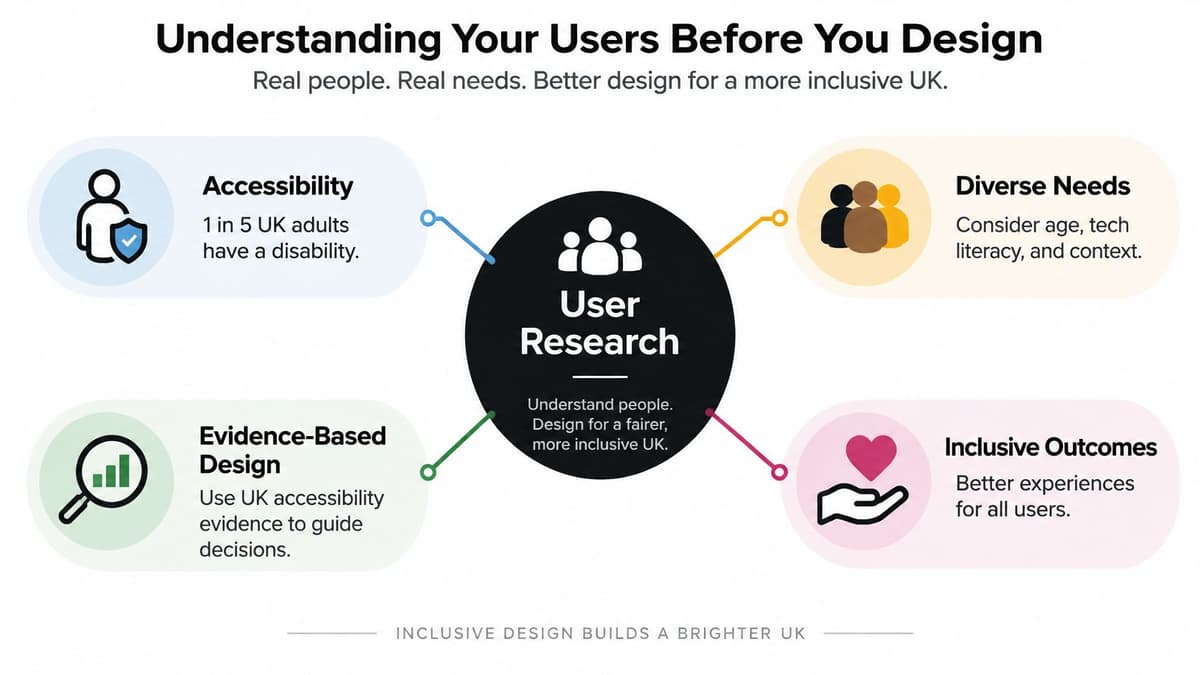
Research isn't a phase you finish and file away. It's how you stop designing for the person in the mirror, who probably has a large monitor, fast broadband, and years of experience with software exactly like yours. Your users may have none of those advantages.
The UK context makes that concrete. At least 1 in 5 people in the UK report having a disability, and government sources identify approximately 14.1 million disabled people nationwide, as set out in UK government guidance on accessibility as usability. Accessibility therefore isn't an edge case you bolt on before launch. It shapes navigation, forms, layouts, and interactive controls from the first sketch.
Run Small Useful Research Rounds
You don't need a lab or a six figure budget to learn something real. Define the tasks you'll observe, recruit people who do that work, and give them realistic data rather than tidy placeholder names. Watch where they hesitate, where they misread a label, and where they invent workarounds.
- Write tasks as scenarios: Ask someone to find and correct a duplicate record, not to click the button you've already pointed at.
- Recruit for difference: Include disabled users, people with low digital confidence, and people who'll use the product under time pressure.
- Record observable behaviour: Capture task completion, errors, hesitation, and accessibility barriers, not just whether participants said they liked it.
- Fix and retest: Change the thing that caused the failure, then check you haven't moved the problem elsewhere.
What to Ask and What to Watch
Interviews tell you about context, vocabulary, and past frustrations. They don't reliably predict behaviour. Someone will tell you they always read instructions, then skip straight past them in a test session. Trust what people do with a prototype more than what they promise they'd do.
Pay close attention to language. If warehouse staff call it a job ticket and your interface calls it a work order, you've created friction before anyone clicks anything. Steal your users' words for labels, navigation, and error messages.
Practical rule: If every participant completes every task easily, your tasks are probably too guided. Real research should surface at least one uncomfortable surprise.
Note confidence as well as completion. A user who finishes a form but isn't sure it submitted will phone your support team anyway. That uncertainty is a design defect, even when your completion metrics look healthy.
End each round with named findings, an owner for each fix, and a decision on severity. Research that produces a long document and no changes is theatre, however well presented.
Building a Component Library and Design System
A design system earns its keep the second time you need a form, not the first. If you've ever inherited a file with seven slightly different primary buttons, you already know the cost of skipping this work. Consistency isn't about tidiness. It's about users learning a pattern once and trusting it everywhere.
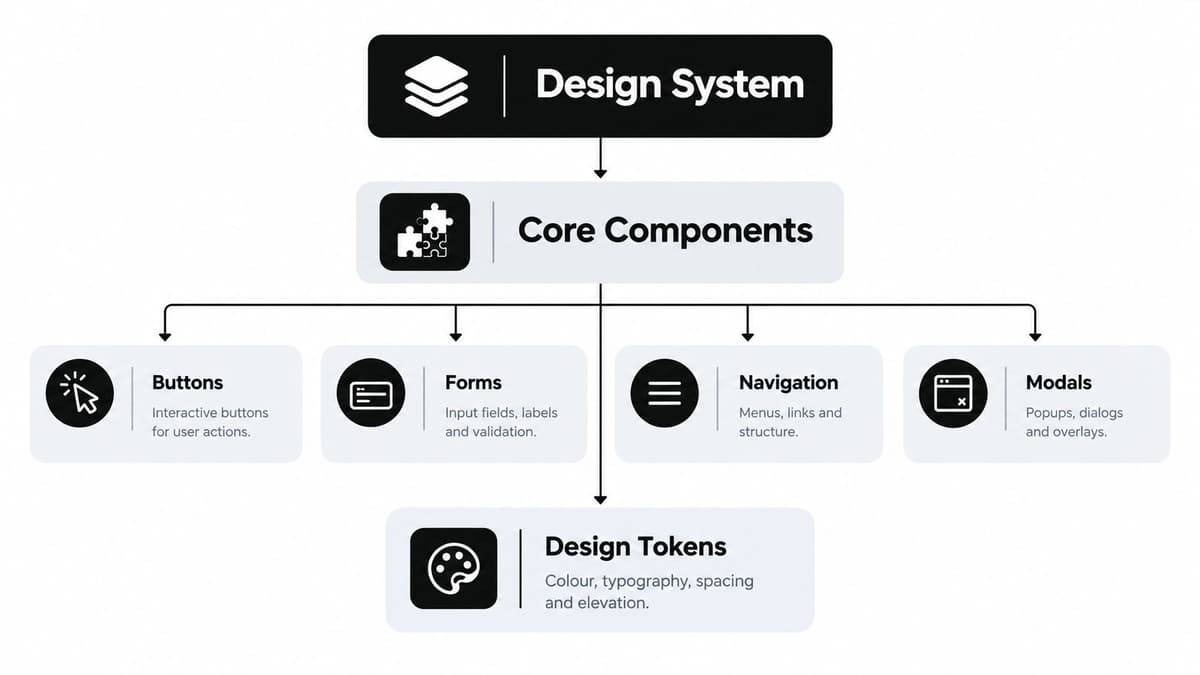
Start by auditing what your application needs. Most web apps rely on a compact core, including buttons, inputs, selects, checkboxes, navigation, tables, tabs, modals, alerts, and empty states. Build those well before you create anything exotic.
Tokens Before Decoration
Define design tokens for colour, typography, spacing, radius, and elevation, and name them by purpose rather than appearance. A token called text-critical survives a rebrand. A token called red-500 tells a developer nothing about when to use it.
| Layer | Examples | Why it matters |
|---|---|---|
| Tokens | Colour roles, type scale, spacing steps | One change updates the whole product |
| Components | Button, input, table, modal | Repeatable patterns users can learn |
| Patterns | Search and filter, multi step form | Consistent behaviour across features |
Every component needs its states designed, not implied. Default, hover, focus, active, disabled, loading, and error all need explicit treatment. The focus state matters most and gets designed least, usually because mouse users on the design team never see it.
Documentation Developers Will Read
Document each component with its purpose, when not to use it, content guidance, and keyboard behaviour. A modal entry should state how focus moves on open, how it closes, and what happens to unsaved input. If that isn't written down, every developer will improvise a slightly different answer.
Studios such as Digital Souls Studios LTD supply component libraries alongside Figma interface design as part of web application builds, which reflects how clients increasingly expect handover to include reusable assets rather than flat screens. Whether you build in house or commission that work, insist on the same standard.
- Keep the library small: A component used once is a screen element, not a system component.
- Version deliberately: Record changes and tell developers what changed, instead of updating the file without notice.
- Pair design and code names: Shared naming between Figma and the codebase removes a whole category of handoff confusion.
Resist building a system for a product that doesn't exist yet. Extract components when a pattern repeats, and let real screens prove what's worth standardising.
Designing Responsive Layouts That Work
Responsive design for web applications isn't the same job as reflowing a marketing page. Marketing content can stack and stretch happily. An application has dense tables, persistent navigation, and users who may be entering data for hours. Shrinking that onto a phone takes decisions, not just breakpoints.
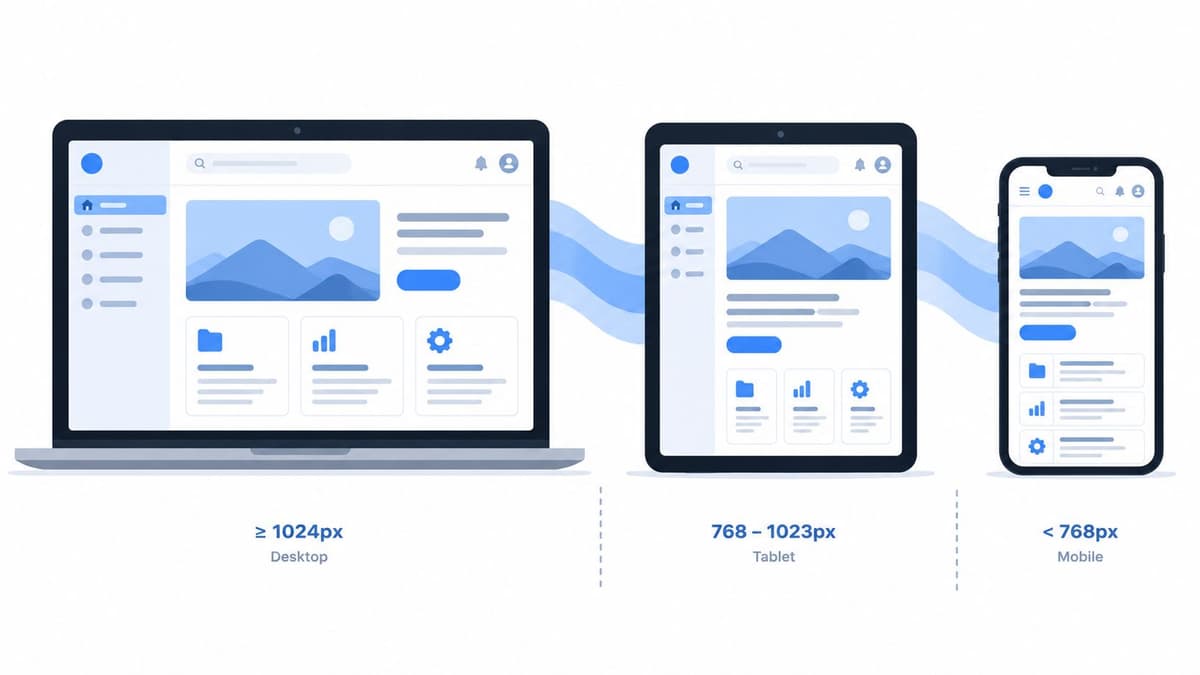
Start from the task priority on each screen size. On desktop, a support agent may need the queue, the customer record, and the reply box visible together. On a phone, that same person probably needs the queue and a fast reply, with the full record one tap away. Decide what leads, what follows, and what's deliberately hidden behind a clear control.
Patterns That Survive Small Screens
Fluid grids and flexible components handle most of the work if you design components to adapt rather than designing fixed pages. Set breakpoints where the content breaks, not where a popular device happens to sit. Then test the awkward in between widths, because that's where sidebars collide with content.
- Data tables: Freeze the identifying column, hide secondary columns behind a detail view, or convert rows to cards when comparison across rows isn't the main task.
- Multi column forms: Collapse to a single column, keep labels visible, and never rely on placeholder text as the only label.
- Navigation: Move from a sidebar to a compact top bar or bottom navigation, and keep the current location obvious.
- Filters: Put them in a disclosed panel on small screens, and show how many filters are active when it's closed.
Test on Real Devices and Real Content
Browser developer tools catch layout breakage, but they won't tell you a tap target feels cramped or that a sticky header eats half the viewport in portrait mode. Borrow actual phones, including an older one, and use the product one handed. Load long names, large numbers, and error states, because tidy sample data hides overflow problems.
A layout that only works with three word headings and empty tables isn't responsive. It's optimistic.
Design for interruption too. Someone completing a long form on a train will lose signal, switch apps, or run out of battery. Save progress, show clearly what's been stored, and let people return without starting again. That resilience matters more to users than any breakpoint trick.
Prototyping in Figma From Wireframes to Clickable Flows
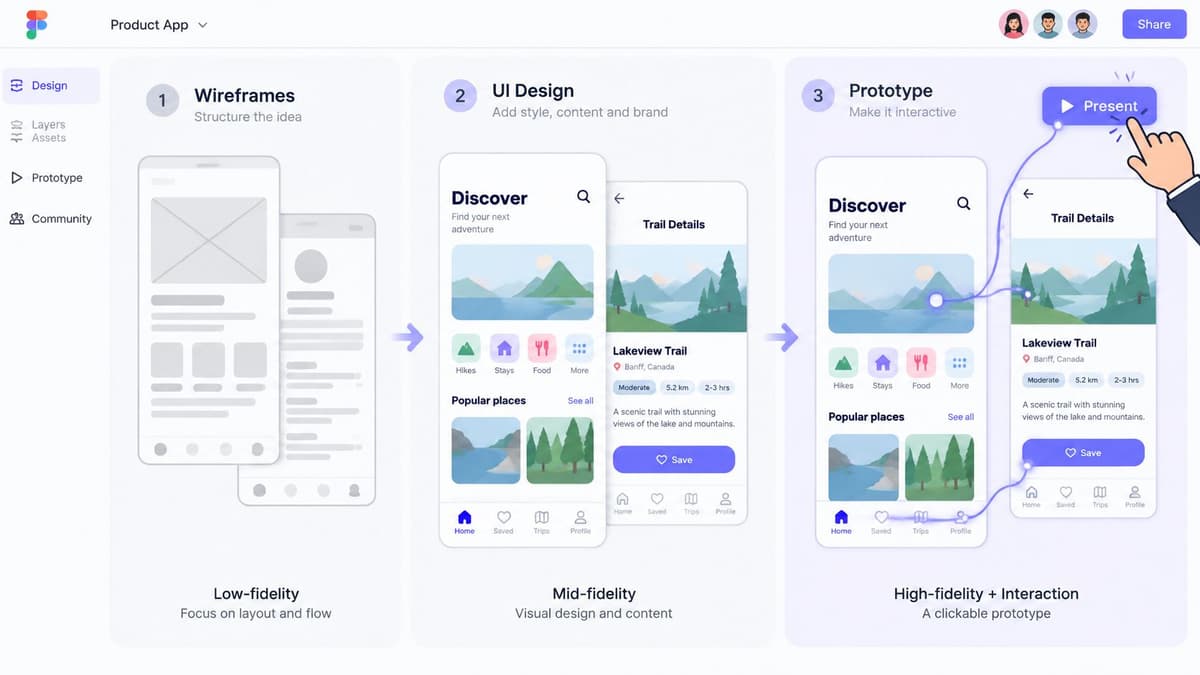
A prototype's job is to answer a question cheaply. Match the fidelity to the question. If you're testing whether users understand the order of steps, grey boxes are enough and honest feedback comes faster. Polish too early and participants start reviewing your colour choices instead of your flow.
The diagram below shows the progression teams commonly follow, from rough structure through to flows realistic enough to test with confidence.
From Wireframes to Flows That Behave
Build frames for complete journeys, not isolated screens, and link them so a participant can succeed or fail without you narrating. If you're still getting comfortable with the early stage, work through a practical guide to creating wireframes before you invest in visual detail. Name frames by user intent, such as Review failed payments, so anyone opening the file can follow the story.
Use components and variants from your library so the prototype inherits real states. Wire up validation errors, disabled submit buttons, and confirmation screens. Those unglamorous moments are where usability problems hide, and they're the moments users remember.
The walkthrough below shows clickable prototyping techniques in practice, including linking frames into testable flows.
Test the Prototype Like You Mean It
UK government practice shows how seriously this can be taken. One service assessment recorded more than 200 hours of research and 22 usability testing sessions in its alpha phase, while a separate UKVI beta assessment ran two rounds with 5 to 6 participants plus further rounds with assisted digital users and still failed on understanding user needs, as described in GOV.UK guidance on designing services for government users. Small rounds are a diagnostic start, not proof.
- Use realistic content: Real names, messy data, and plausible volumes expose problems lorem ipsum conceals.
- Include the edges: Test sign in, empty states, errors, and interrupted journeys, not only the happy path on desktop.
- Stay quiet during tasks: Every hint you give converts a finding into a false pass.
Record what happened against each task, fix the worst blockers first, and prototype the change rather than debating it. A second short round beats a long meeting about opinions.
Practical Tips for Accessible and Trustworthy UI
Accessibility work often gets framed as compliance, which undersells it and lets teams stop at automated checks. UK monitoring shows why that isn't enough. In a programme covering 612 websites, the most frequent issues included Focus Visible at 12% of reported issue categories, Name, Role, Value at 11%, minimum colour contrast at 11%, and keyboard operation at 8%, according to UK public sector accessibility monitoring for 2020 to 2021. Those are interface fundamentals, not obscure technicalities.
The Basics That Still Get Missed
Make keyboard focus impossible to miss, and never remove the outline because it looks untidy in a screenshot. Keep colour contrast strong for body text, not just headings. Give every control a meaningful label that survives being read aloud by a screen reader, and write link text that explains the destination instead of repeating click here.
Error messages deserve the same care as your primary calls to action. Say what went wrong, where, and how to fix it, in the user's words. Invalid input helps nobody. Enter a date in the format DD MM YYYY at least gives someone a next step.
Design for Low Confidence Not Just Compliance
Passing checks doesn't guarantee people can cope. UK inclusion evidence records 34 million UK adults online with some form of vulnerability or barrier, 8 million lacking basic digital skills, and 1.6 million who cannot access services they need online, as reported in Good Things Foundation research on the UK digital nation. A stripped back minimalist interface can make that worse when it removes labels, instructions, and confirmation states that cautious users rely on.
Offer save and return on long journeys, confirm completed steps plainly, and keep help visible rather than buried. Explain unfamiliar concepts in short, respectful language. Users who lack confidence don't need simplification that patronises them. They need to know where they are and that they can't break anything.
Trustworthy AI Features
The same thinking applies when you add AI. A UK study of 354 generative AI users found trust and satisfaction were influenced by perceived competence, benevolence, integrity, usefulness, and ease of use, while privacy and security concerns reduced trust, as examined in Northumbria University research on trust in generative AI. So design for review and recovery. Let users preview AI changes before anything executes, label generated content separately from verified records, keep an activity log, provide undo, and offer a human route when the model is wrong.
Calibrated automation beats confident automation. Give users manual, assisted, and automated modes, and let them choose how much control to hand over.
Verifying Your Design Through Testing and Iteration
Shipping isn't verification. A design is verified when real users complete real tasks on it, including with keyboards, screen readers, and phones, and when the failures you've found have named owners. Anything less is hope dressed as process.
Set acceptance gates before engineering freeze and hold them even when the schedule gets tight. Reasonable gates include no critical task blocker outstanding, keyboard completion of every primary flow, screen reader checks on names and roles, and documented resolution for every severe finding. If a gate fails, you fix it or you consciously accept the risk in writing.
A Lightweight Cadence That Sticks
Run short test rounds tied to your riskiest assumption, not to a calendar ritual. One round on onboarding, one on your most error prone form, one on mobile. Teams planning a structured web page redesign can reuse the same cadence, testing the existing experience first so improvements are measured against evidence rather than taste.
- Track findings visibly: Keep severity, owner, and status where the whole team can see them.
- Retest fixes: A fix you haven't watched a user succeed with is an assumption.
- Feed results back: Update components and guidance so the same defect doesn't reappear in the next feature.
Iteration feels slower than building once and moving on. It isn't. Every blocker you catch in a prototype is a support ticket, a lost customer, or an accessibility complaint you don't have to handle later.
If you're planning a web application and want interface design grounded in research, tested prototypes, and components your developers can build from, Digital Souls Studios LTD designs and builds web apps and SaaS products end to end, from Figma through to launch and support. Tell us about your product and the users who'll depend on it at Digital Souls Studios LTD, and we'll help you turn that blank canvas into something people can use with confidence.