30th October 2026 · 16 min
Web Application Design Principles for 2026

The most repeated advice on web application design is still the same pair of shortcuts. Make the screens look finished, tick a WCAG grade, and drop a chat panel in the corner. A polished screen is not the same thing as a task someone can finish, and a reported grade or a new chat box does not prove the product works.
People reopen software. They sign in, fill a form, pay, check a record, and come back tomorrow to see whether anything changed. If the queue, the stamp and the receipt have no fixed place, an attractive poster at the counter still fails the job.
Table of Contents
- What Web Application Design Has to Carry
- Design Decisions to Lock Before You Build
- UX Patterns for Repeated Application Jobs
- Layouts That Survive Phones and Desktops
- Accessibility Proved by Finished Tasks
- Component Libraries That Keep Screens Honest
- Governed AI Inside Existing Jobs
- Choose the Next Sprint from Real Journeys
What Web Application Design Has to Carry
Say a small compliance team replaces a shared spreadsheet. On Monday someone opens the browser to see which return is overdue. On Tuesday they correct a figure, hit a validation error, and need the draft still there. On Wednesday finance checks that the payment went through. That repeated job, not a one-off page someone reads and leaves, is what web application design has to carry. It covers what the person sees, what the system remembers, and how they recover when a code is wrong or a connection drops.
Think of a busy counter. A poster can be attractive and still fail if the queue, the form, the stamp and the receipt have no fixed place. The same split sits in the browser. A page someone reads once can be a single column of explanation. An application they reopen has to hold accounts, forms, payments, records and dashboards without making people guess which desk does which job.
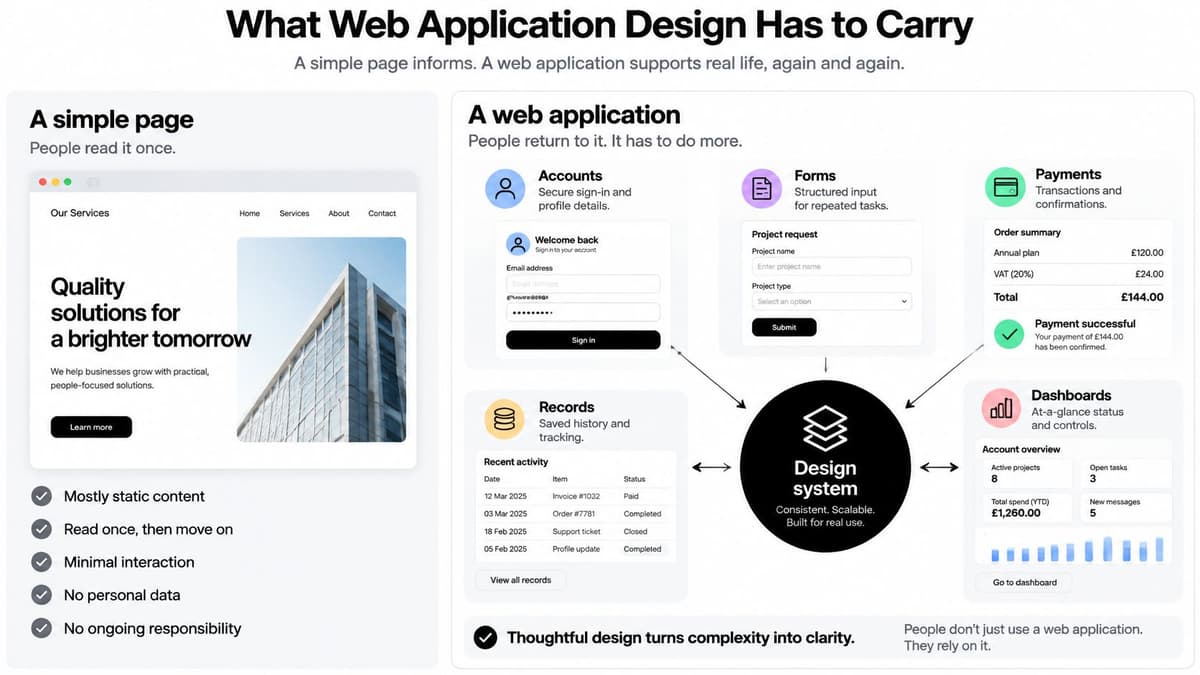
Four concerns sit under that counter, and the rest of this guide separates them rather than mixing them into a mood board.
Task-shaped UX is the job on each view, including empty, busy and failed states. Layouts that reflow keep that job usable from a phone to a wide desktop. Accessibility judged by finished tasks asks whether someone can complete the work, not whether a report says the markup passed. A component library stops the stamp changing shape at every screen.
You might be planning an MVP, replacing an ageing tool, or shipping a public, learning, compliance or fintech service. The risk differs. Treating design as decoration after engineering fails all three. A WCAG claim or a new chat box does not prove the product works. Before the next sprint, lock the checks in the decision table below.
Design Decisions to Lock Before You Build
Treat each row as a sprint acceptance theme, not a slogan. If a row has no proof check, it is not ready to build.
| Concern | What to design | Failure if skipped | Proof check |
|---|---|---|---|
| Task-shaped UX | One primary job per view, with status, empty and error states | People cannot tell what to do next | A participant completes the main task without coaching |
| Responsive reflow | Usable layout from about 320px CSS width through a wide desktop, including 400 per cent zoom, with touch-friendly controls that still work by keyboard | Content clips, overlaps or needs sideways scrolling | Pass phone, tablet, desktop and zoom checks |
| Accessible interaction | Visible focus, keyboard use, names and roles, contrast and plain errors | Keyboard and assistive-technology users stop mid-task | Finish the journey by keyboard and with a screen reader |
| Component library | Shared tokens, states and documented control variants | Every screen invents a different button or field | New UI matches the library before it merges |
| Perceived performance | Budgets for JavaScript, images, fonts and third parties on key journeys | The first useful screen arrives too late | Real-user measures on a UK mobile network |
| Governed AI | Approval threshold, provenance, fallback and an audit trail | A chat box acts without a reviewable outcome | Decisions are logged and model changes are retested |
How to apply the rows
Task-shaped UX means one primary job per view. A signup view asks for the account. It does not also teach the product tour. Status, empty and error states are part of the design, not a later ticket. Proof is a participant finishing the task without a narrator in the room.
Responsive reflow is a pass or fail on real widths. Check a narrow phone, a tablet, a wide desktop, and the same view at high zoom. Touch targets need space. Hover-only menus fail the keyboard half of the check.
Accessible interaction is the path, not the colour palette alone. A visible focus style, keyboard operation, a programmatic name and role on every control, readable contrast, and error text that names the fix. The journey is done when someone finishes it by keyboard and with a screen reader.
The component library is the contract. Colour and type tokens, documented states, and a rule that new interface does not merge if it invents a one-off button. Sketch that contract in wireframes before the build forks.
Perceived performance is a budget on the journeys that matter, such as registration or a dashboard. Cap initial JavaScript, images, fonts and third-party requests, then measure on a real UK mobile connection. A fast homepage score does not count.
Governed AI only belongs where an existing job needs it. A person must see uncertainty, approve a high-impact action, fall back to a manual path, and find an audit trail. Later sections expand UX, layout, accessibility and components. Do not add a model because the roadmap looked empty.
UX Patterns for Repeated Application Jobs
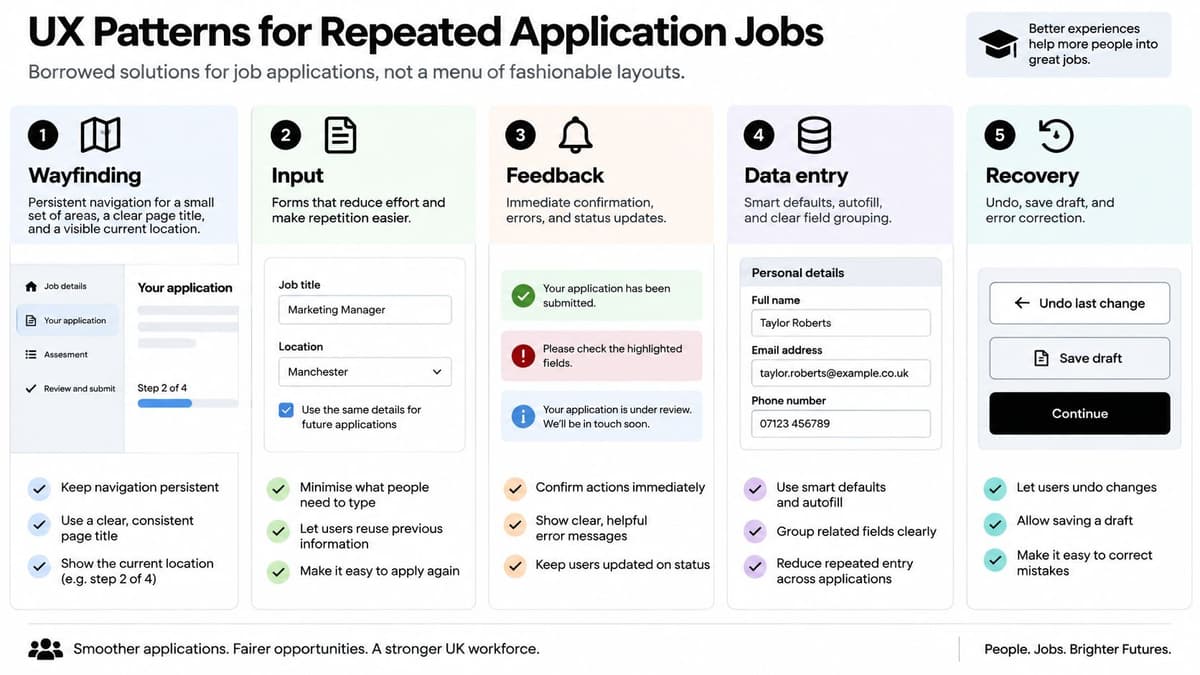
A polished screen can still leave someone stuck halfway through a task. Good application design makes the next step clear, keeps changes understandable and gives people a way to recover when something goes wrong.
These five patterns cover common jobs in a web app: finding your place, making a change, checking a record, recovering from an error and understanding what the system has done.
Wayfinding. Keep a small set of areas in persistent navigation, give each view a clear title, and provide a way back that does not rely on the browser button alone. On a compliance dashboard, “Returns”, “Payments” and “Account” may be enough. The title should identify the organisation and period, so people know which records they are viewing.
Making a change. Use short forms, labels that remain visible as someone types, and validation messages that explain how to correct an error. Add a review step before a costly or consequential action, such as a payment or permission change. A booking tool, for example, should show the held slot, price and cancellation rule before enabling “Pay”.
Seeing the record. Let people move from a list to filtered results and then to a detail view. If the list is empty, explain what is missing and how to add it: “No returns yet. Add the April return.” A blank illustration gives no direction.
Recovering. Name the field that needs attention and explain the fix. Offer undo for reversible actions, and save a draft for a long form. “Company number needs 8 characters” is more useful than “Invalid input”. If someone closes a laptop halfway through a return, the draft should be available when they come back.
Trusting the system. Show whether an action is pending, failed or complete. “Payment sent, reference 1842” gives a clear result; a spinner with no explanation does not. If a check takes time, say what is happening and whether the person can do anything while they wait.
Practical rule: When two patterns compete, choose the one that shortens the main task while keeping a clear way out.
A command palette, infinite scroll or dense data grid can suit someone who already knows the records. For a first-time user trying to find an overdue return, those tools can add work instead of removing it. Add expert controls only when the job calls for them.
The test is whether someone can complete the journey, not whether the interface looks familiar. A short walk-through can reveal where the steps, feedback and recovery options need to work together.
Layouts That Survive Phones and Desktops
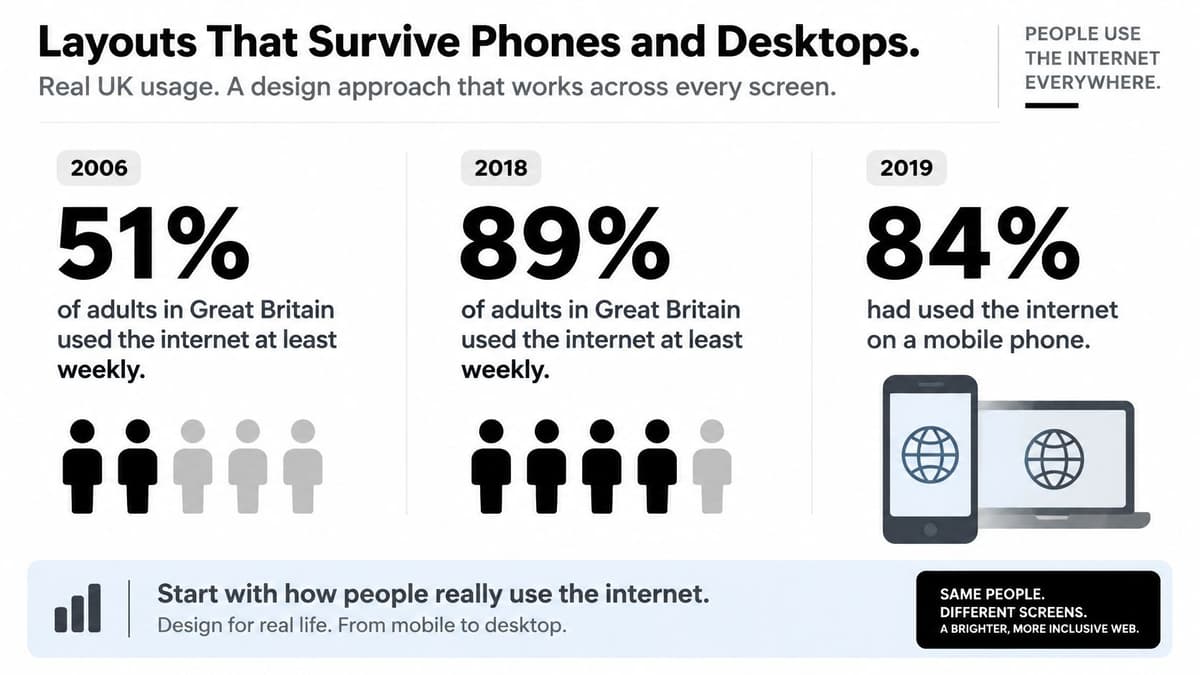
Start from how people in Britain get online, not from a desktop artboard.
The Office for National Statistics reported that 89% of adults in Great Britain used the internet at least weekly in 2018, compared with 51% in 2006. By 2019, 84% of adults had used the internet "on the go", and mobile phones or smartphones were the most common method, used by 79% of adults. The same release found that 64% of households connected through mobile broadband at home in 2019, alongside fixed broadband.
The same job may start on a phone and finish on a laptop, on a connection that changes mid-task. Designing only for a fixed desktop viewport leaves ordinary use out.
Content priority before breakpoints
Decide what must stay visible before you pick a breakpoint. On a narrow screen, show the primary action, the current state and the next required field. Move secondary filters, history and settings behind a clear disclosure. On a wide screen, use the extra room for context, such as the last three submissions beside the form. Do not invent a second competing task just because the canvas is wide.
Touch targets need space. Hover-only menus and tiny icon buttons fail both touch and keyboard users. Reflow means text and controls stack without sideways scrolling at a narrow width and at high zoom. A practical pass is the same signup or record-edit journey on phone, tablet and desktop, including a slow connection, with a written note of which content is allowed to disappear. Mobile-friendly web design starts with that continuity, not with a shrunk desktop.
Weight on the journeys that matter
Images and panels need reserved space so the page does not jump when they load. The first useful content should not wait on a large script, a custom font or a third-party widget.
GOV.UK's accessibility work sits on a service that hosts roughly half a million pages and receives an average of 5.1 million visits per day. One heavy shared template multiplies across that audience. The same team audited more than 60 representative pages rather than trusting a homepage score. Set budgets for initial JavaScript, images, fonts and third-party widgets on registration and the dashboard, and test those page types on a UK mobile network.
Accessibility Proved by Finished Tasks
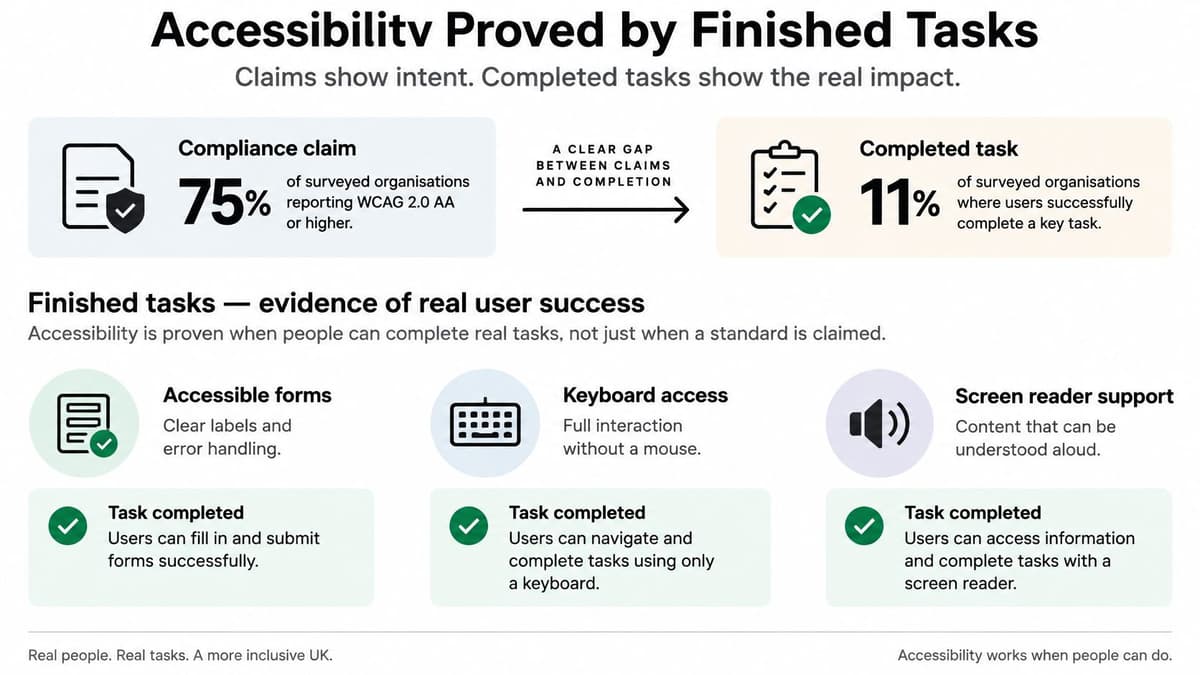
A website can report accessibility compliance and still leave someone unable to finish a task. The useful test is whether people can complete real journeys, including sign-in, form submission and recovery from an error.
What to build, not only what to publish
UK public-sector websites and mobile applications must follow the Public Sector Bodies (Websites and Mobile Applications) Accessibility Regulations 2018. Government Digital Service monitoring reports accessibility issues found during public-sector monitoring. A published accessibility statement helps explain a service's accessibility and known issues, but it cannot show whether someone can complete a task.
Set pass conditions for specific journeys before building the screens. For example: a keyboard user can correct a rejected payment and submit it again. “Meets WCAG” alone does not say whether that recovery path works.
Start with checks a small team can repeat.
- Set acceptance criteria for each journey. State what completion means and include the error path. A user should be able to find an error, understand it and correct it without losing their progress.
- Check shared controls in context. Buttons, fields and other controls need accessible names, roles and states. Test the colour combinations users encounter, including button text and error messages.
- Combine automated and human checks. Automated tools can find some issues, such as missing names, but they cannot judge whether instructions make sense or an error can be fixed. Follow with keyboard and screen-reader checks, zoom, and a moderated session with disabled people focused on a high-risk journey.
If testing time is limited, begin with sign-in, a form that changes money or data, and the route for recovering from an error. These journeys reveal whether someone can enter, act and recover, not just view a polished screen.
Keep the accessibility statement current and assign someone to own each defect. A new field can create a new barrier, so check changed journeys as the product develops.
Component Libraries That Keep Screens Honest
A component library is the product's shared counter fittings. If the stamp changes shape at every desk, staff and customers both hesitate. A small web app does not need an enterprise catalogue. It needs a minimum set that the build is not allowed to bypass.
Tokens first. Colour, type, space and focus, with contrast checked on the pairs people see: body text, text on buttons, and error messages. If the error red fails on a white field, fix the token, not the one screen someone noticed.
A short component list. Button, link, text field, select, checkbox, dialog, toast and table row. Each one documents the states that exist for it: default, hover, focus, disabled, busy and error. A button without a visible focus style is an unfinished component, even if the mock looks sharp in Figma.
Content rules sit beside the components. Visible labels, not placeholder-only fields. Button text that names the action, such as "Submit April return", not "Continue". Error text placed on the field it concerns.
Documentation a developer can follow in Figma and in code. Say when to use a button versus a link, and name the variant that is forbidden. A new pattern is added only after two screens need it. One-off CSS counts as a defect.
The Central Digital and Data Office's monitoring of 612 websites identified 2,691 issues across 421 tests. The most frequent defects included insufficiently visible keyboard focus (WCAG 2.4.7, 12%) and missing accessible names, roles or values (11%). Those failures tend to live in shared components, so one fix in the library reaches every screen. Wireframes and the clickable prototype should use the same components the build will use.
When a token or a state changes, retest the highest-risk journey. Do not assume every screen inherited the fix.
Governed AI Inside Existing Jobs
Adoption of a model is not the same thing as a feature someone can trust. A chat panel on a dashboard is easy to ship and hard to defend. The useful question is how the application makes AI safe, reviewable and measurable inside a job the product already has, such as drafting a return, suggesting a booking slot, or summarising an open case.
A small team can run these controls without an enterprise platform.
- An approval threshold. Above it, a person must confirm a high-impact action. Sending a payment, changing a permission, or filing a return never goes out on the model's say-so.
- Provenance and uncertainty beside the output. Show where the figure came from and when the model is unsure. Hide that and people will treat a guess as a record.
- A manual fallback and a named escalation. If the suggestion is wrong, the person completes the job by hand and can pass it to a colleague. The path must exist in the interface, not only in a support doc.
- Role-based permissions and tight data boundaries. The model sees only what that job needs. A support assistant should not read payroll because both live in the same database.
- Audit logs of inputs, outputs and the decision a person made. Cost limits per workflow, so one noisy prompt cannot run the bill up overnight.
- Outcome metrics such as resolution time or error rate, compared before and after launch. If the numbers do not move, remove the step.
Treat security of the assistant as part of the job, not a later hardening pass. AI agent security belongs in the same acceptance checks as the approval threshold.
Retest the workflow whenever the model or the prompt changes. A swap can alter the outcome with no visible change to the screen. Log the version next to the decision so a later review can see which model produced it.
Choose the Next Sprint from Real Journeys
Pick one journey that would hurt most if it failed. Three candidates cover most early products.
Signup and return. Show what is already saved, keep the primary action visible on a phone, and make a wrong-code error something a screen reader announces.
A data-changing form, such as a payment, a booking or a compliance return. Review before submit, a keyboard path through every field, and a library field rather than a bespoke input.
A dashboard people reopen. Status before charts, an empty state with one action, and speed judged on that view rather than the marketing homepage.
Write the acceptance checks from the decision table, prototype the journey on the shared components, and name an owner for each defect. Add a governed AI step only if that journey already has a job an assistant can support.
Shallow adoption is common, which is why the assistant has to earn its place. The Office for National Statistics reported that AI use among UK businesses with 10 or more employees rose from about 12% in late 2023 to around 35% in June 2026, while the average number of AI technologies used per adopting business only moved from about 1.4 to 1.6. The UK Business Data Survey found 41% of businesses handling digitised data used AI for at least one purpose in 2025–26, against 82% of large businesses. Growth in use is not proof the workflow changed.
We take a project through Specification, Production, Launch and Support. In Specification the client explains the idea in writing and we put together a specification suited to the work. In Production we design and build with regular updates. Commission one sprint in that shape: a single journey, its acceptance checks, a clickable prototype on the shared components, and a named owner for each defect, reviewed with real users before the build expands.
Digital Souls Studios LTD designs and builds web applications, from the specification through launch and support, for teams that need repeated jobs to work in the browser rather than a screen that only looks finished. We cover interface design, engineering and, where a real job needs it, governed AI inside the product. Visit Digital Souls Studios LTD to talk through the journey you want in the next sprint.